Innovate
  Accelerate
  Engineers & Experience
  Quality Assurance
  Salesforce
  Application Development and Maintenance
  Full Cycle Development
  Consulting Services
  Staff Augmentation
  eCommerce
  Education
  Fintech
  Health & Wellness
  Healthcare
  Logistics
  Media & Entertainment
  Real Estate
  Travel
  Sports




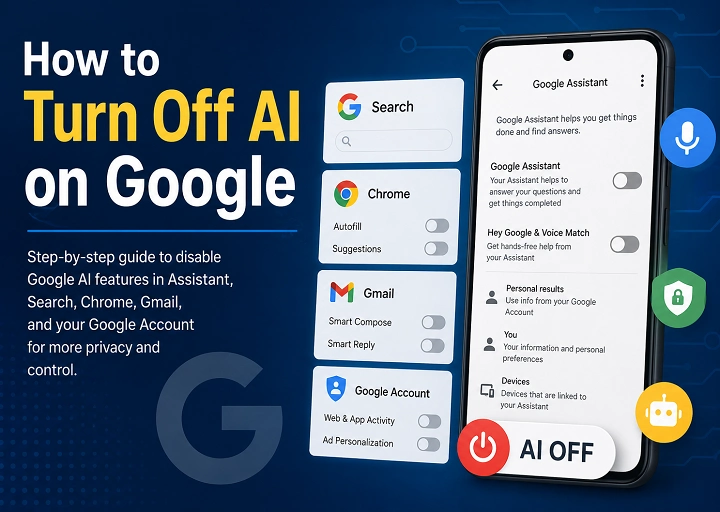
Artificial intelligence is becoming increasingly integrated into Google products, including Search, Chrome, Gmail, Android devices, Google Assistant, and smart home devices. These features can make everyday tasks faster, but not everyone wants AI involved in their searches, communications, recommendations, or personal data.
You may want to disable Google AI features because of privacy concerns, inaccurate AI-generated information, unwanted suggestions, creative preferences, or a desire for a simpler digital experience.
Google does not currently offer one universal switch that turns off every AI feature across its services. Instead, you must manage individual settings within Google Assistant, Search, Chrome, Gmail, and your Google Account.
This guide explains how to turn off Google AI features where possible and how to reduce or bypass AI-driven functionality when Google does not provide a complete opt-out option.
Turning Off Google AI Features in Google Assistant
Google Assistant was introduced as a voice-controlled tool that could answer questions, manage connected devices, set reminders, play media, and complete other everyday tasks.
Today, some Android devices may use either Google Assistant or Gemini as the default digital assistant. Both services rely on technologies such as speech recognition, machine learning, natural language processing, and personalized recommendations.
The “Hey Google” feature waits for an activation phrase before processing a command. However, users who do not want voice activation or Assistant-related activity connected to their Google Account can disable the Assistant, turn off Voice Match, mute their device’s microphone, and delete previously saved activity.
Steps to disable Google Assistant on Android
The exact menus may vary depending on your Android version, phone manufacturer, and whether Google Assistant or Gemini is set as your default assistant.
To turn off Google Assistant on most supported Android devices:
- Say, “Hey Google, open Assistant settings.”
- Alternatively, open the Google Assistant or Google Home app.
- Open Assistant settings.
- Select All settings or See all Assistant settings.
- Tap General.
- Turn off Google Assistant.
Google’s current instructions confirm that the Assistant can be disabled through the General section of Assistant settings.
Turning off Google Assistant prevents it from functioning as your active assistant. However, other Google apps and Android services may continue using machine learning for functions such as spam detection, photo organization, search ranking, and security.
To disable only voice activation while keeping the Assistant available:
- Open the Google Home app.
- Tap Settings.
- Select Google Assistant.
- Open Voice Match.
- Turn off Hey Google or Use Voice Match.
Disabling “Hey Google” stops hands-free activation, but the Assistant may still open when you press a button, tap its icon, or use another device shortcut.
Managing AI in Google smart speakers
Google Nest speakers, smart displays, and some Google Home devices use a built-in voice assistant. On most of these devices, the most reliable way to stop the assistant from listening for voice commands is to turn off the physical microphone.
Look for a microphone switch or mute button on the back or side of the device. When the microphone is disabled, the device usually displays an orange or red light.
Google confirms that muting the microphone prevents a compatible speaker, smart display, or smart clock from activating through voice commands.
The device may still work as a speaker through Bluetooth or casting, depending on the model. Muting the microphone does not necessarily disconnect the device from your Wi-Fi network or Google Account.
You can also review the device’s other settings:
- Open the Google Home app.
- Select Home and then All devices.
- Press and hold the device tile.
- Open Settings.
- Review Voice Match, personal results, notifications, recognition, and activity settings.
For complete voice deactivation, use the physical microphone switch rather than relying only on settings inside the Google Home app.
Disabling Google AI in Search and Chrome
Google uses automated systems and machine learning to rank search results, understand search intent, detect spam, correct spelling, generate recommendations, and personalize results.
These systems are built into Google Search, so it is not possible to remove every form of AI from the search engine. However, you can reduce personalization, opt out of experimental AI features, and use search filters that display traditional web links.
Disabling AI in Google search personalization
Search personalization may use previous searches, account activity, approximate location, and interactions with Google services to customize results and predictions.
To reduce personalized search results:
- Sign in to your Google Account.
- Open Data & privacy.
- Find History settings or Personalization and activity.
- Select Web & App Activity.
- Choose Turn off.
- Decide whether you also want to delete previously saved activity.
Web & App Activity can include searches and activity from Google products. Turning it off limits how this information is saved and used for personalized experiences.
You can also manage:
- Search personalization
- Search history
- YouTube History
- Google Maps Timeline
- Personalized advertising
- Activity auto-delete settings
Turning these options off does not stop Google from using AI to rank results or operate its services. It mainly reduces the amount of account activity used to personalize your experience.
Can you turn off Google AI Overviews?
Google does not offer a dependable setting that permanently removes every AI Overview from all search results.
Users enrolled in Search Labs experiments can turn off optional AI features:
- Open Google in a desktop browser.
- Sign in to your Google Account.
- Open a new Google Search tab.
- Click the Labs icon.
- Select Manage.
- Turn off AI in Search or similarly named AI experiments.
Turning off a Labs experiment reduces experimental AI features, but it may not remove every standard AI Overview that Google displays.
To view traditional results without an AI-generated summary:
- Perform a Google search.
- Find the filters above the results.
- Click Web.
The Web filter displays text-based website links without features such as AI Overviews. You may need to open More before the Web option appears.
Turning off AI in Google Chrome’s autofill and suggestions
Chrome can suggest search queries, complete URLs, save addresses, fill payment information, and automatically complete online forms. Some newer versions may also provide enhanced or AI-assisted autofill features.
To turn off saved addresses:
- Open Chrome.
- Click the three-dot menu.
- Select Settings.
- Open Autofill and passwords.
- Select Addresses and more.
- Turn off Save and fill addresses.
To stop Chrome from filling payment information:
- Open Settings.
- Select Autofill and passwords.
- Open Payment methods.
- Turn off the options for saving and filling payment methods.
Google provides separate controls for saved addresses, payment details, and enhanced autofill functionality.
To reduce search and URL suggestions:
- Open Chrome’s Settings.
- Search the settings page for Improve search suggestions.
- Turn the feature off.
Chrome may still display suggestions from your local browsing history. To remove those suggestions, you may also need to delete your browsing and search history. Turning off suggestions does not disable Chrome’s security protections, and you should avoid turning off Safe Browsing solely to reduce AI features.
How to Turn Off Google AI in Your Google Account
Your Google Account controls many of the personalization and smart features used across Search, Gmail, Maps, YouTube, Workspace, and other Google products.
To review these controls:
- Open your Google Account.
- Select Data & privacy.
- Review History settings.
- Turn off activity categories you do not want Google to save.
- Open My Activity to review or delete previously stored information.
- Set up automatic deletion if you do not want activity retained indefinitely.
Google allows users to delete individual activities, remove activity from a particular period, or automatically delete eligible information after a selected retention period.
Remember that pausing activity collection does not automatically delete information that has already been stored. Choose Turn off and delete activity when available if you also want to remove existing records.
Managing AI in Gmail
Gmail uses automated systems for several purposes, including spam filtering, phishing detection, email categorization, writing suggestions, message summaries, and suggested replies.
Security features such as spam and phishing detection cannot generally be disabled individually and should usually remain active. However, you can turn off writing suggestions and other personalized smart features.
To disable Smart Compose on a computer:
- Open Gmail.
- Click the Settings icon.
- Select See all settings.
- Under the General tab, find Smart Compose.
- Select Writing suggestions off.
- Scroll down and click Save Changes.
To disable Smart Reply:
- Stay in Gmail’s General settings.
- Find Smart Reply.
- Select Smart Reply off.
- Save your changes.
Smart Compose uses machine learning to suggest text while you write, and Google provides an account-level control for disabling these suggestions.
You can also review Gmail’s broader smart-feature controls:
- Open Gmail settings.
- Select the account you want to manage.
- Find Google Workspace smart features.
- Turn off smart features in Google Workspace.
- Turn off smart features in other Google products when required.
Disabling these broader settings may affect inbox categories, automatic filtering features, package tracking, calendar suggestions, Smart Compose, Smart Reply, and personalization across other Google services.
Take control of Your AI
Google AI cannot be completely removed through a single setting because machine learning is built into the operation, security, ranking, and personalization of many Google services.
You can still take meaningful control by disabling Google Assistant, turning off “Hey Google,” muting smart-device microphones, limiting account activity, reducing search personalization, switching to the Web search filter, and disabling Smart Compose and Smart Reply in Gmail.
Review these settings periodically because Google may rename, relocate, add, or remove controls as its products develop. Menus can also differ according to your device, operating system, country, account type, and app version.
Turning off optional AI features is only one part of protecting your privacy. Strong passwords, multifactor authentication, updated software, careful app permissions, secure browsing tools, and reputable security software can provide additional protection for your accounts, devices, and personal information.